
Smarter Components: Using Icon Metadata to Guide AI in Kentico Projects
Agentic AI software development is unlocking software developers' ability to ship faster, increase the scope of their work, and experiment with creative ideas. It also augments their toolset with technologies they might not be as familiar with, allowing them to create their own tools that improve their development workflow.
I released a new integration for Kentico developers - Xperience Community: Kentico Component Icons - built with a vibe coded Python app, OpenAI's API for image recognition, and a $0.04 API budget.
This post was written for Xperience by Kentico v31.1.0. Please consult the documentation for any feature or API changes when using a different version. Be sure to check the System Requirements in the product documentation.
Component icon selection and AI context
If you’ve worked with Xperience by Kentico for any length of time, you’ve likely faced this challenge: finding the right icon for a specific object or component in the administration UI.
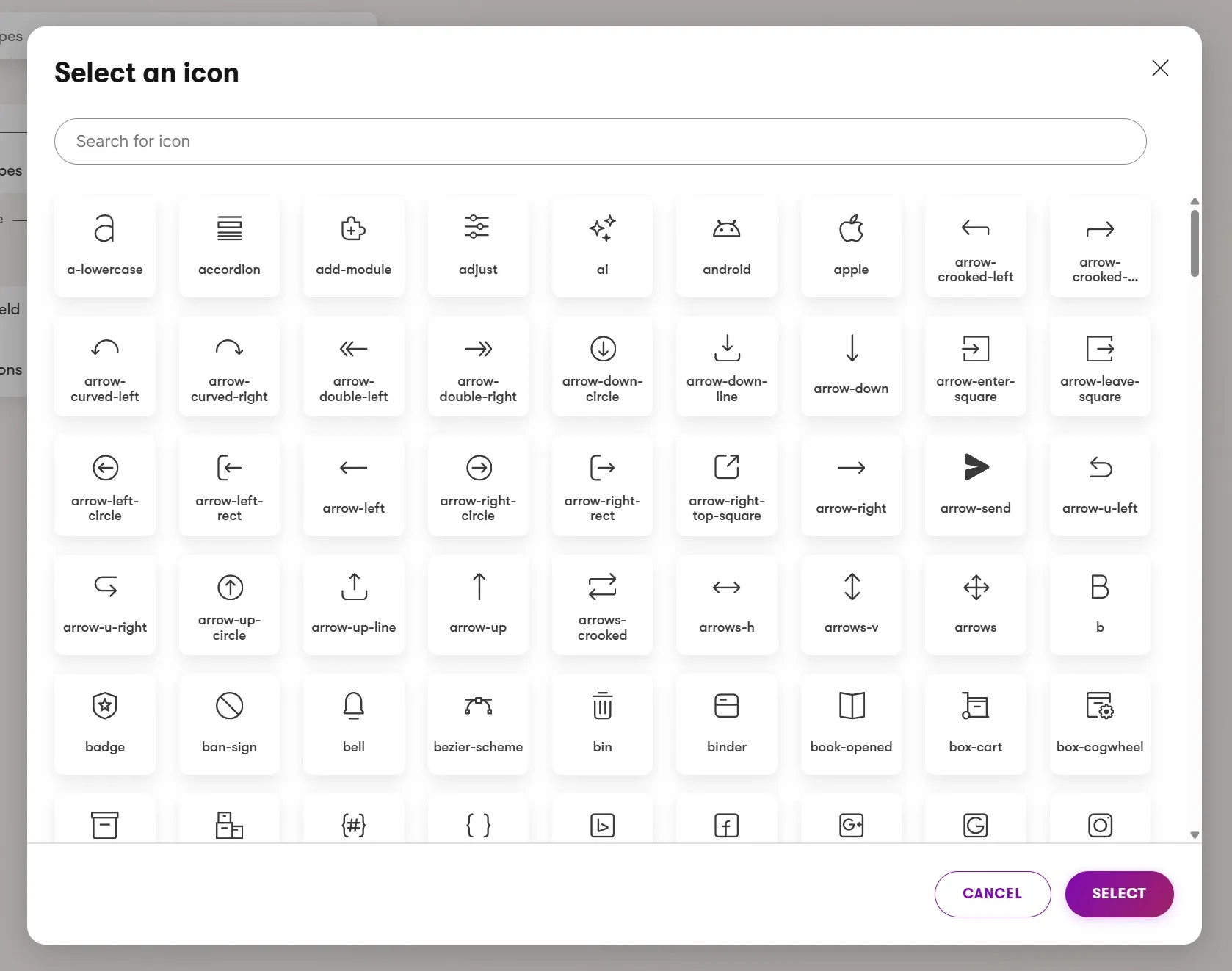
For example, you encountered the long list of icons available to give a helpful visual identity to your content types.
This newer set of icons is accessible in C# using the Kentico.Xperience.Admin.Base.Icons class. You can use these when registering a custom Admin UI page.
using Kentico.Xperience.Admin.Base;

[assembly: UIApplication(
    identifier: WebsiteSearchApplicationPage.IDENTIFIER,
    type: typeof(WebsiteSearchApplicationPage),
    slug: "website-search",
    name: "Website search",
    category: BaseApplicationCategories.CONTENT_MANAGEMENT,
    icon: Icons.Earth, // <- a "globe" icon
    templateName: TemplateNames.SECTION_LAYOUT)]
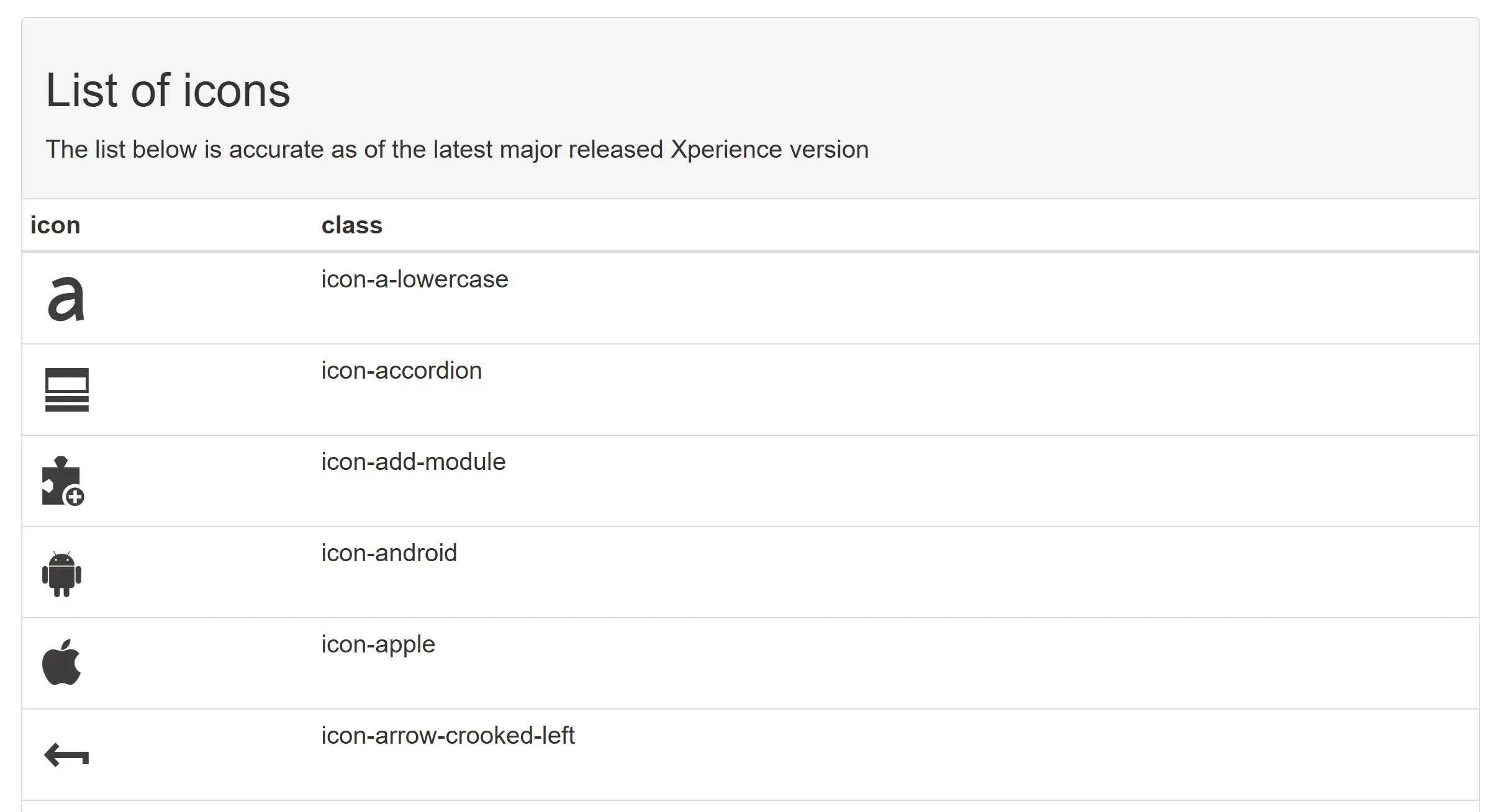
However, that isn’t the only icon set in the Xperience administration UI. An older set - still used for Page Builder, Email Builder widgets, and Form Builder components - is available separately for reference at https://devnet.kentico.com/docs/icon-list/index.html.
Unfortunately, there is no C# class for the older icon set. Developers copy and paste the icon class name (e.g. icon-braces) into their code when they register a component.
[assembly: RegisterEmailWidget(
    identifier: CTAWidget.IDENTIFIER,
    name: "CTA",
    componentType: typeof(CTAWidget),
    IconClass = "icon-chain", // a chain or link icon
    PropertiesType = typeof(CTAWidgetProperties),
    Description = "Call to action with a label, link, and design customization.")]
The Kentico Community Portal source includes an AI-generated list (created with a ChatGPT prompt) to avoid manual copy/paste of class names. I've never shared this more broadly. Other developers have to know it exists and then copy it into their projects.
This is nice for a human developer who knows the visual appearance of the icons, but it does not hit the mark for AI agents - they can read the C# field name but these are not very descriptive. For example, icon-cb-check-disabled is a black square box.
When using KentiCopilot to generate widgets, I usually have to adjust the icon selection after the AI agent generates the widget code.
I was recently inspired to solve two problems at once.
Make the list if older Kentico icons available to all developers with a simple open-source C# library.
Use AI to annotate the C# icon class with accurately descriptions so AI agents would have better context to select the right icon.
Vibe coding a web scraping image describer
“Vibe coding” is a contentious term. Some argue it's on the verge of replacing traditional software development entirely; others see it as producing fragile code with security risks.
My opinion is in the middle. I don't think vibe coding is a solution for production-grade software and it empowers people to make their own tools.
I needed a tool that could:
Scrape the Kentico icons page
Capture screenshots of font-based icons (since they are not native image files)
Collect all the icon class names
Have AI generate useful descriptions of the icons' visual appearance
Store the data in a spreadsheet
Translate the spreadsheet into a C# class
The constraints that production-grade software has were not present:
This was a one-time operation to process over 400 icons
I did not need to understand how the tool worked
It didn't need graceful error handling
It didn't need to be customizable to support different sets of data
I didn't need to protect against prompt-injection, escalation of privilege, or other security attack vectors
I gave these simple requirements to ChatGPT and said "build an app to do this". ChatGPT chose the following stack:
Python 3 (language and runtime)
Playwright (web scraping)
OpenAI (image descriptions)
Excel (spreadsheet output)
The app worked, mission accomplished. You can check it out and even run it yourself.
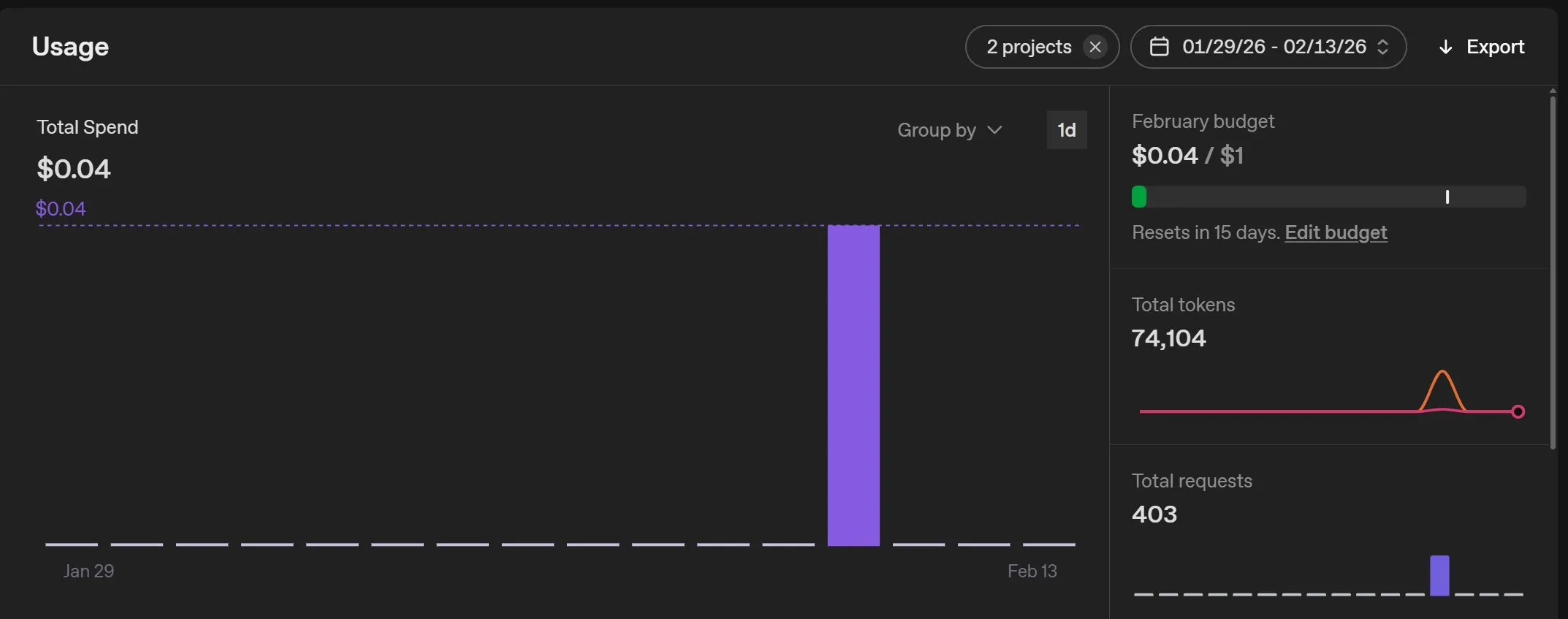
It took approximately 15 minutes to prompt and set up the project, 5 minutes to run the script, and approximately $0.04 in OpenAI API usage.
A vibe coding future?
Although I don't think vibe coding should be used to generate production-grade software today, I can't predict the future. AI models and agents could become powerful enough that they handle even more software creation and validation responsibilities.
However, even if that happens, software developers will inevitably move up the responsibility ladder, increasing the scope of what they can accomplish.
I also think someone will always have to take ownership over what the AI produces, and successful ownership requires understanding. We might not actively type much of the code but we will still need to validate it - somehow.
Transforming a spreadsheet into C#
Once the .xlsx was generated I needed to transform this into a C# icons class with fields for every icon, each with the icon's visual description as a comment.
This was another one-time task with a well-defined scope. I prompted ChatGPT to write an app to create this C# file from the spreadsheet. It again chose python.
I copied the script into my repository and ran it, generating an Icon.cs file instantly.
The last part of my original goal was the most time consuming - creating the .NET project, packaging, and publishing it on NuGet, but I have thoughts about improving that with AI as well.
A simple solution
The Kentico community can use this package to help developers and AI agents select a helpful icon for their Xperience by Kentico components.
The package has no dependencies, requires no updates, and is straightforward to use:
using XperienceCommunity.KenticoComponentIcons;

[assembly: RegisterWidget(
    identifier: FAQWidget.IDENTIFIER,
    viewComponentType: typeof(FAQWidget),
    name: FAQWidget.NAME,
    propertiesType: typeof(FAQWidgetProperties),
    Description = "Displays FAQ items in an expandable accordion format",
    IconClass = KenticoIcons.CHECKLIST,
    AllowCache = true)]
The CHECKLIST field has the following definition:
/// <summary>
/// Checklist with one checked box and two empty boxes.
/// </summary>
public const string CHECKLIST = "icon-checklist";
I encourage you to experiment with AI as a technology and share your discoveries and creative solutions.
Note
This library has now been adopted by Kentico as Xperience by Kentico Component Icons - a "Lab" project and part of KentiCopilot.

Sean Wright
I'm Lead Product Evangelist and part of the Developer Experience division at Kentico. I work to help our community understand the strategy and value of Xperience by Kentico, with a focus on developers building digital experience solutions. I'm also responsible for Kentico's Community Programs.